 Features
•
31 October 2026
Features
•
31 October 2026
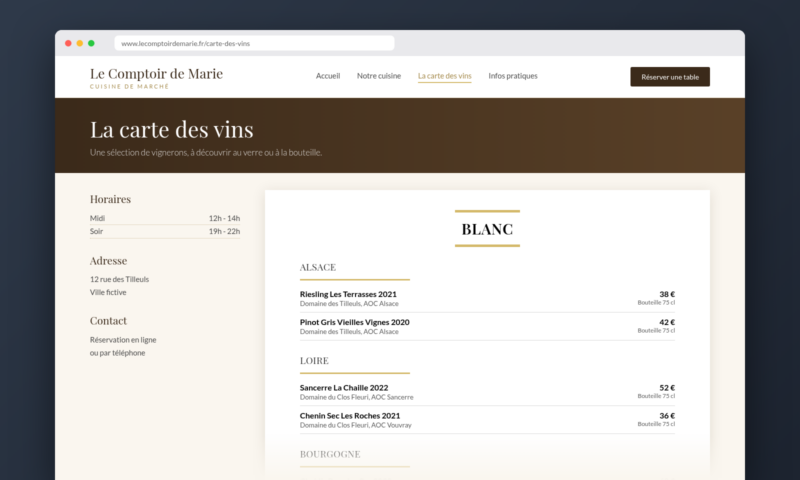
To show your wine list on your restaurant's website, Winevizer offers three methods from your client area: an iframe code to paste, a WordPress plugin, or a script to add to the page. In all three cases the list stays managed in one place. You change a price in Winevizer and your website picks it up, with no new page to build and no PDF to send back to your web developer.
Many restaurants have an up-to-date wine list on the table and an older one on their website. This is not negligence. The site was built once, the PDF was uploaded, and nobody touched it when a vintage or a price changed. The guest who checks before booking reads the wrong version.
In your client area, the list of establishments shows an Integration button for each one. It opens a window with three tabs: Iframe (direct code), WordPress and JS Script. Each tab gives the code or the steps for the establishment you picked, with a button to copy it.
A useful point if you do not work on the site yourself: in the Iframe tab, a section called "Send the guide to my webmaster" lets you enter the address of the person who looks after your site. They receive an email with the direct link to the list, the iframe code as you set it up, and a mention of the WordPress plugin. You have nothing to copy out.
The iframe is a block of code to paste into a page. It suits any site that accepts HTML code, whatever tool it was built with. You choose two settings before copying:
It is the simplest method. Its trade-off: the list appears inside a frame, which makes it less readable for search engines than text placed directly in the page.
If your site runs on WordPress, the Winevizer plugin is published in the official WordPress directory under the name Winevizer. You can also download it from the WordPress tab of the integration window. It needs a Winevizer account, since that is where the content of the list lives.
Setting it up takes a few steps:
There are three ways to place it: the [winevizer] shortcode to paste into a page or a post, the Winevizer wine list block in the editor, or a widget for a sidebar or a footer. All three follow the same global setting, so there is nothing to redo page by page. If no establishment shows up in the list, check that the address you entered is the one of your account, then use the button that refreshes the list.
The plugin offers four display types:
The first two are the ones that matter for your visibility. When the wines are written in the page rather than in a frame, search engines read them like the rest of your site, and a guest searching for a producer you serve can land on your establishment. The two iframe displays are simpler but less readable for search engines.
One practical detail: for the two displays built into the page, WordPress keeps the list in memory for up to an hour. A price changed in Winevizer can therefore take up to an hour to appear on your site. This is not a flaw, it is what keeps your pages fast.
The third tab offers a script to paste into the page, with a small container. The list is rebuilt directly in your page, with search and filters, without an iframe. It takes the shape of one of three designs: traditional digital menu, paper-style menu or mosaic menu. You can also set up to five colours (accent, background, text, sheets and separators) to match the identity of your site.
This method is announced as a beta, and the virtual sommelier journey is not yet available in it. If the virtual sommelier matters to you on your site, go through the iframe or the plugin.
Open the list of your establishments, click Integration, copy the code that fits your site and paste it into a test page before publishing. Check the height on a phone, because that is where the list will mostly be read.
If you do not have a digital list yet, the free digital wine list lets you build a first version with your own references before you decide anything.

The year-end holidays are approaching, bringing an influx of customers to restaurants and bars. Effectively managing your restaurant's wine list during this busy period can become a real challenge. Fortunately, solutions exist to simplify this task while providing a unique experience for your customers. Opt for the wine list […]
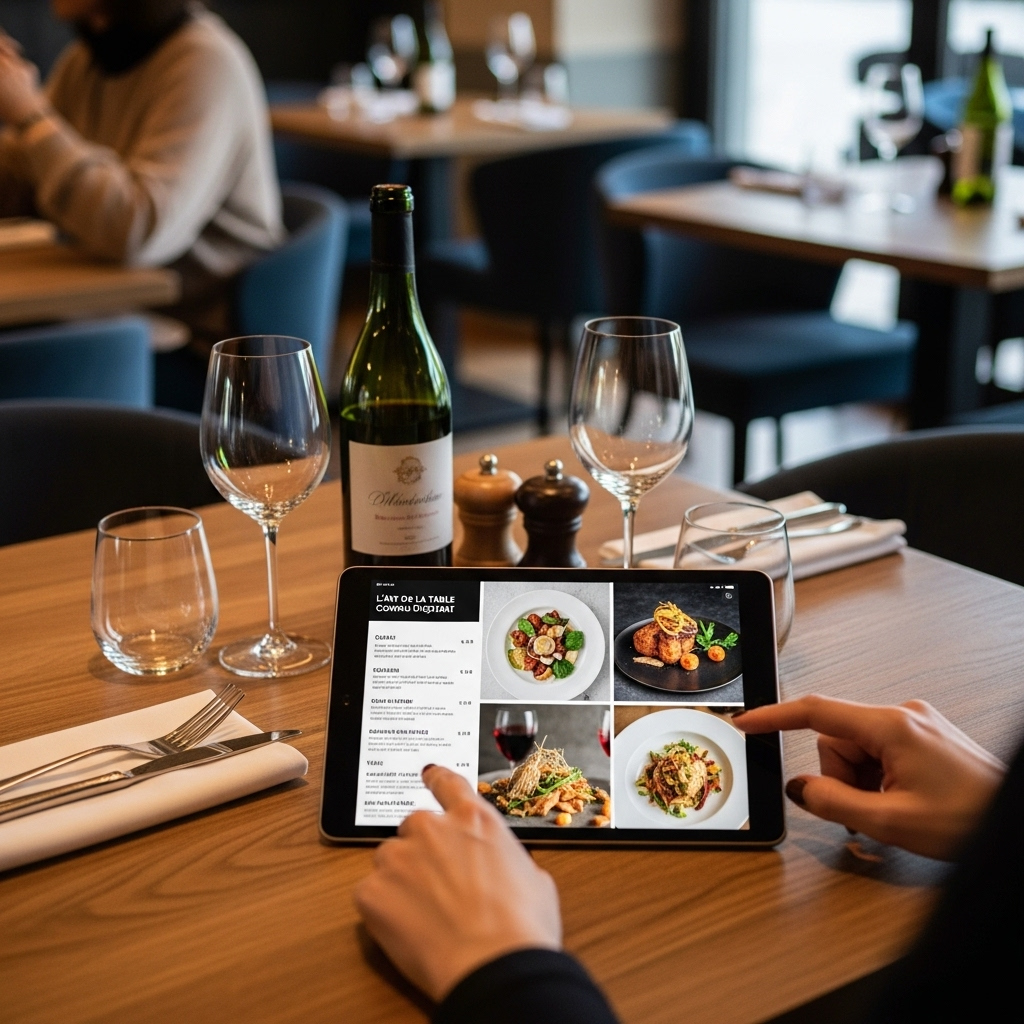
Are you thinking of deploying tablets in your restaurant? Discover how to choose the equipment, structure your menu (and your digital wine list), manage costs, and maximize ROI without degrading the in-room experience.<\/p>
Starred sommeliers blend prestigious wines and natural wines to meet customer expectations while exploring new flavors. How to connect this with a digital wine list?
For 1 month with no commitment